


HyperDroid - PC Launcher
4.5464.00 Reviews
App Specs
- Version
- 2.7
- Updated On
- License
- Free
- Downloads
- 1,000,000+
- Developer
- binary inc.
- Categories
- Personalization
- Platform
- Android
Screenshots
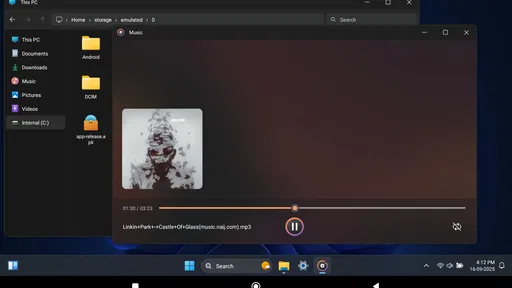
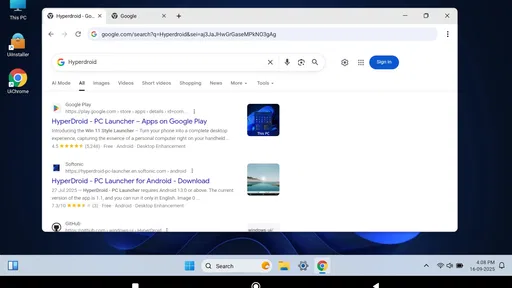
 Analysis by AppCompare
I’d approach HyperDroid - PC Launcher as a change to the way I reach and arrange Android apps, not as a replacement for a computer. That distinction matters: a desktop-style home screen can make a phone feel more organized, but it does not automatically change what the phone itself can do. If you enjoy the familiar rhythm of a taskbar and app menu, the idea is appealing; if you want your usual home screen left untouched, the adjustment may feel like more work than help.
Before changing your home screen
HyperDroid is a free personalization app from binary inc. Its appeal is less about adding another destination for your content and more about changing how the device presents the apps and shortcuts you already use. I would think of it as a new front door to the phone: useful when the layout suits your habits, but not essential if your current launcher already gets you where you need to go.
The first question I’d ask is whether the desktop metaphor solves a real annoyance. Do you repeatedly open the same few apps? Do you prefer a visible taskbar to returning to a home screen and searching? A launcher can help with those routines by making familiar destinations easier to spot. It is less likely to help if the bottleneck is slow apps, a small display, or a task that needs desktop software rather than a different Android layout.
Where setup can feel unfamiliar
Switching launchers changes a central part of the phone’s everyday interface, so the first session can feel odd even when nothing is wrong. App positions and navigation may not match what you have learned from your previous home screen. I’d give myself a little time to find the start menu, taskbar, and customization controls before deciding whether the layout fits. A rushed first impression can confuse unfamiliarity with a fault.
It also helps to make changes gradually. I’d start with a small group of frequently used apps and arrange those before spending time on themes or a full redesign. That gives me a practical test: can I reach the things I need more easily during an ordinary day? If the new layout makes routine actions slower, there is little value in polishing its appearance first.
Simple checks when something seems off
If the launcher does not look or behave as expected, I would begin with basic checks rather than changing several settings at once. Confirm that it is open, revisit the layout choices you have already made, and check whether the issue occurs only in one part of the interface or throughout the phone. Changing one thing at a time makes it easier to tell whether a setting helped or merely changed the appearance.
For someone considering installation, Android 6.0 is the minimum operating system version. The app is rated for Everyone, and its current version is 2.4. The release date was June 23, 2024, so I would still judge the experience on the device in front of me rather than assume every phone will feel identical. A launcher sits at the center of daily navigation, which makes personal comfort more important than a quick glance at its feature list.
Worth Reading Before You Choose

EA SPORTS FC Mobile 26 Is a Bigger Football Game, but It Takes Time

Flipboard Shows What News Apps Must Do Beyond the Feed

Switching to Android Auto Means Rethinking Your Driving Routine

Google Calendar Makes a Crowded Week Easier to Manage

Ludo King Makes the Most of the Minutes Between Plans

Baby Panda World Brings Quick Play to Modern Phones, but Its Game Library Feels Busy
Getting back to a comfortable routine
My safest approach to a layout problem is to pause before making a pile of edits. If I have moved several icons, changed a theme, and rearranged widgets in one go, it becomes difficult to work out which change caused the new annoyance. I’d adjust one area, use the phone for a while, and then decide what to change next. That workflow is slower for a few minutes but saves the frustration of rebuilding a layout from memory.
If I simply miss my old arrangement, I would treat that as useful feedback rather than proof that the app has failed. A desktop-style layout is a preference, not an upgrade everyone needs. The right comparison is with the launcher I already use: does the new one make recurring actions clearer, or does it ask me to learn a visual system that I do not enjoy?
What the launcher can—and cannot—change
A different home screen can change how I organize access to apps, but it cannot by itself make an Android phone behave exactly like a desktop computer. That boundary is important when judging productivity claims. A keyboard or mouse may suit some phone workflows, yet the usefulness still depends on the device, the apps, and the task. For longer writing or work that depends on desktop-only tools, a computer remains the more sensible choice.
HyperDroid has an average rating of 4.6 from around 18,000 ratings, with over a million installs. That kind of adoption suggests many people are interested in the desktop-style approach, but it cannot tell me whether I will prefer it. I’d use those figures as context, then decide based on the daily routines I want the launcher to support.
The Transformative Experience
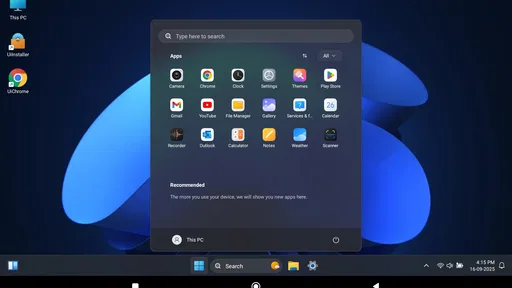
Picture this: You’re navigating your Android device, but instead of the usual grid of app icons, you’re greeted with a sleek, desktop-like interface. That’s exactly what HyperDroid - PC Launcher offers. It transforms your smartphone into a mini PC, complete with a start menu, taskbar, and even desktop widgets. It’s almost like carrying around a tiny computer in your pocket, and honestly, I found it super refreshing.
Interface and Usability
First off, let’s talk about the interface. The app boasts a clean and intuitive design that mimics a Windows-like environment. It’s incredibly user-friendly, especially for those of us who are already familiar with desktop layouts. The start menu is customizable, allowing you to pin your favorite apps for quick access. I found the drag-and-drop functionality particularly handy for organizing my apps just the way I like them.
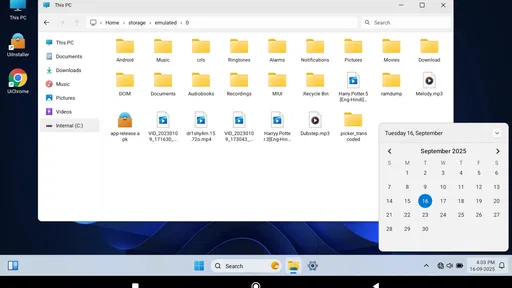
Now, on to the taskbar. It’s essentially your command center, showing active apps and allowing you to switch between them effortlessly. The built-in widgets are a nifty addition, letting you keep tabs on the weather, your calendar, or the latest news without leaving your home screen. It’s those little touches that make this app a standout.
Performance and Customization
Performance-wise, HyperDroid - PC Launcher doesn’t disappoint. I was worried that such a feature-rich launcher might slow down my device, but it actually runs smoothly without any noticeable lag. The developers seem to have optimized it well for a wide range of devices, which is a huge plus.
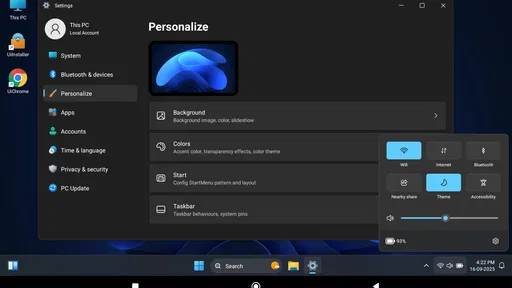
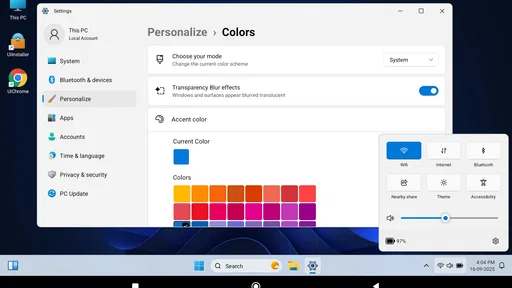
Customization is king with this app. You can tweak pretty much everything—icons, themes, widget placements—you name it. I personally enjoyed playing around with the themes, giving my phone a fresh look every few days. For those who love to personalize their gadgets, the possibilities here are endless.
Features That Stand Out
One of the coolest features is the split-screen mode. It allows you to run two apps side by side, just like on a PC. This was a game-changer for me, especially when multitasking between emails and social media. There’s also a built-in file manager, which makes navigating through your files a breeze. No more digging through folders to find what you need!
Another highlight is the app’s support for keyboard and mouse connectivity. If you’re someone who uses your phone for productivity, this feature is a lifesaver. I tried connecting a Bluetooth keyboard, and it worked seamlessly, turning my phone into a mini workstation. It’s perfect for those quick edits or sending out emails on the go.
Who Is It For?
So, who would benefit most from HyperDroid - PC Launcher? In my opinion, if you’re a power user who relies on their smartphone for more than just calls and texts, this app is worth exploring. It’s also great for anyone who misses the traditional desktop setup while using their phone. Whether you’re a student juggling between assignments or a professional managing tasks, this app adds a layer of efficiency to your daily routine.
However, if you’re someone who prefers simplicity and isn’t a fan of tweaking settings, you might find the options overwhelming. But hey, it’s always good to step out of your comfort zone, right?
Using the layout during a real day
Imagine checking a calendar item in the morning, replying to a message between errands, and returning to a document later. A desktop-like home screen can make the sequence feel more deliberate: keep the apps you actually use within easy reach, then rely on the taskbar when you move between open tasks. The practical benefit is not that the phone suddenly handles more work; it is that the route between familiar apps may feel easier to follow.
I would keep the home screen focused rather than treating every available space as a place for a shortcut or widget. Too many visible choices can make a desktop-inspired layout just as cluttered as a crowded app grid. A useful test is whether I can identify the next app I need at a glance. If I keep scanning the screen, removing a few items may improve the experience more than another round of theme changes.
Choosing between this and a standard launcher
Compared with a conventional Android launcher, HyperDroid’s main distinction is its desktop-like organization. Standard launchers often suit people who prefer a familiar phone-first layout, simple pages, or a search-led way of opening apps. This app makes more sense when a start menu, taskbar, and widget-oriented home screen match how you think about navigation. Neither approach is automatically more productive; the better one is the one that reduces friction for your own habits.
I would also separate launcher customization from deeper device capabilities. A different launcher can present app access in a new way, but it is not the same thing as a desktop operating system or a guarantee that every app will support mouse input, windowing, or a large-screen workflow. If your main goal is to write for hours, edit complex files, or run computer-specific software, a tablet or computer may be a better fit than trying to make a phone fill that role.
Small habits that make the switch easier
One useful approach is to identify a short list of daily apps before arranging anything. Put those in the most convenient places, then leave less-used apps in the menu rather than giving every icon equal prominence. I’d also try the layout for ordinary tasks before making a final judgment: opening a message, checking a calendar, and switching back to another app reveal more than browsing customization options in isolation.
Widgets are most useful when they answer a quick question without prompting another detour. If a calendar view helps me check what is next, it earns its space; if I rarely look at a particular widget, removing it keeps the screen easier to scan. That is a small but worthwhile trade-off: a desktop feel comes from a useful arrangement, not from filling the display with desktop-like elements.
For keyboard and mouse use, I would treat the connection as an optional convenience rather than the reason to install the launcher. A compact reply or brief edit may be comfortable with a keyboard, while a long session can still be constrained by the phone’s screen and the apps being used. Trying one real task before relying on the setup for work is a sensible way to discover whether the combination suits you.
Who may be happier with another option
If I want the lightest possible home screen and rarely change its arrangement, I would probably stick with a standard launcher. The same goes for anyone who finds menus, widgets, and visual customization distracting. HyperDroid’s desktop metaphor is the point, so people who do not enjoy that style should not feel obliged to adapt just because it looks different.
It may also be the wrong choice when the problem is not navigation. If an app itself is slow, a connection is unreliable, or a phone is uncomfortable for a task, changing the launcher is unlikely to solve the underlying issue. I’d first work out whether the inconvenience comes from finding an app or from what happens after it opens. That distinction can prevent spending time rearranging a home screen when a different solution is needed.
Final Thoughts
At the end of the day, HyperDroid - PC Launcher is a robust app that brings the best of both worlds—merging the familiarity of a PC interface with the portability of a smartphone. It’s not just a novelty; it’s a useful tool that enhances productivity and customization on your device. If you haven’t tried it yet, I’d say go ahead and give it a shot. You might just find your new favorite launcher!
And as always, if you’re curious to see what all the fuss is about, you can download the app from the links provided. Happy exploring!
My practical verdict
I’d recommend trying it if a desktop-style layout sounds genuinely comfortable to you, especially if you regularly move among a handful of apps and like arranging your home screen around that routine. Its free price lowers the commitment, and the Everyone age rating makes it broadly suitable, but neither fact guarantees it will suit your taste. The strongest reason to keep it is a navigation pattern that feels easier after the novelty wears off.
My advice is to judge it by one ordinary day rather than by how impressive the first screen looks. Set up only the shortcuts and widgets that serve a real purpose, then notice whether you find apps faster and switch between them more naturally. If you do, the personalization has practical value. If you spend more time maintaining the layout than using it, returning to a simpler launcher is a perfectly reasonable choice.
Pros
- Customizable interface for personal touch.
- Smooth performance on most devices.
- Supports widgets for added functionality.
- Includes a robust app drawer feature.
- Intuitive design for easy navigation.
Cons
- Limited compatibility with older devices.
- Occasional ad interruptions.
- Some features require in-app purchases.
- Initial setup can be time-consuming.
- Lacks advanced gesture controls.
FAQs for HyperDroid - PC Launcher
What is HyperDroid - PC Launcher?
HyperDroid - PC Launcher is an innovative app designed to transform your Android device into a PC-like interface. It offers a unique desktop experience with features such as app drawers, taskbars, and customizable widgets. Ideal for users who prefer a more structured and efficient way to manage their mobile applications.
Is HyperDroid - PC Launcher free to use?
Yes, HyperDroid - PC Launcher is free to download and use. However, it may offer in-app purchases or premium features for users who want to enhance their experience. These premium features might include additional themes, advanced customization options, and ad-free usage.
What are the main features of HyperDroid - PC Launcher?
The app includes a range of features such as a customizable desktop environment, app sorting options, a taskbar similar to that of a PC, and support for multiple widgets. Users can personalize their interface with various themes and layouts, making their device both functional and visually appealing.
Is HyperDroid - PC Launcher compatible with all Android devices?
While HyperDroid - PC Launcher is designed to work on most Android devices, compatibility may vary depending on the device’s specifications and Android version. It is recommended to check the app’s requirements on the Google Play Store before downloading to ensure optimal performance.
How does HyperDroid - PC Launcher impact device performance?
The app is optimized for performance but may consume additional resources depending on the level of customization and the number of widgets in use. Users with older or less powerful devices might experience slower performance, so it’s advisable to adjust settings for a smoother experience.


